
To debug mcp server connection issues, you must isolate transport failures from environment configuration errors using systematic log inspection. Effective troubleshooting requires verifying path variables in your configuration files and confirming tool metadata against the MCP specification. This process ensures your client correctly initializes the server and maintains a stable communication channel for tool execution.
A silent connection failure in your Model Context Protocol setup is rarely a logic bug; it is almost always an environment failure. You've likely experienced a server that runs in a terminal but fails when called by a client. This guide provides a production-grade workflow to resolve transport and metadata errors. We will apply the same criteria used for the fourteen hosted MCP servers to verify your local configuration. By following the agent-readiness audit benchmarks, you ensure every tool meets the MCPize Verified A grade standards. We'll reference 138 free agent skills to demonstrate valid manifest structures. For those managing professional environments, an All-Access license offers the stability required for high-stakes automation.
Key Takeaways
- Locate client-side log files in Claude Desktop or Cursor directories to differentiate between tool logic errors and underlying transport failures.
- Learn to debug mcp server connection issues by replacing relative paths with absolute file locations and defining required environment variables in your configuration.
- Isolate server-side bugs from client misconfigurations by using the MCP Inspector or mock scripts to manually trigger initialization handshakes.
- Apply the seven audit dimensions of the MCPize Verified A grade to validate tool metadata and implement origin security for production environments.
Debug MCP server connection with logs
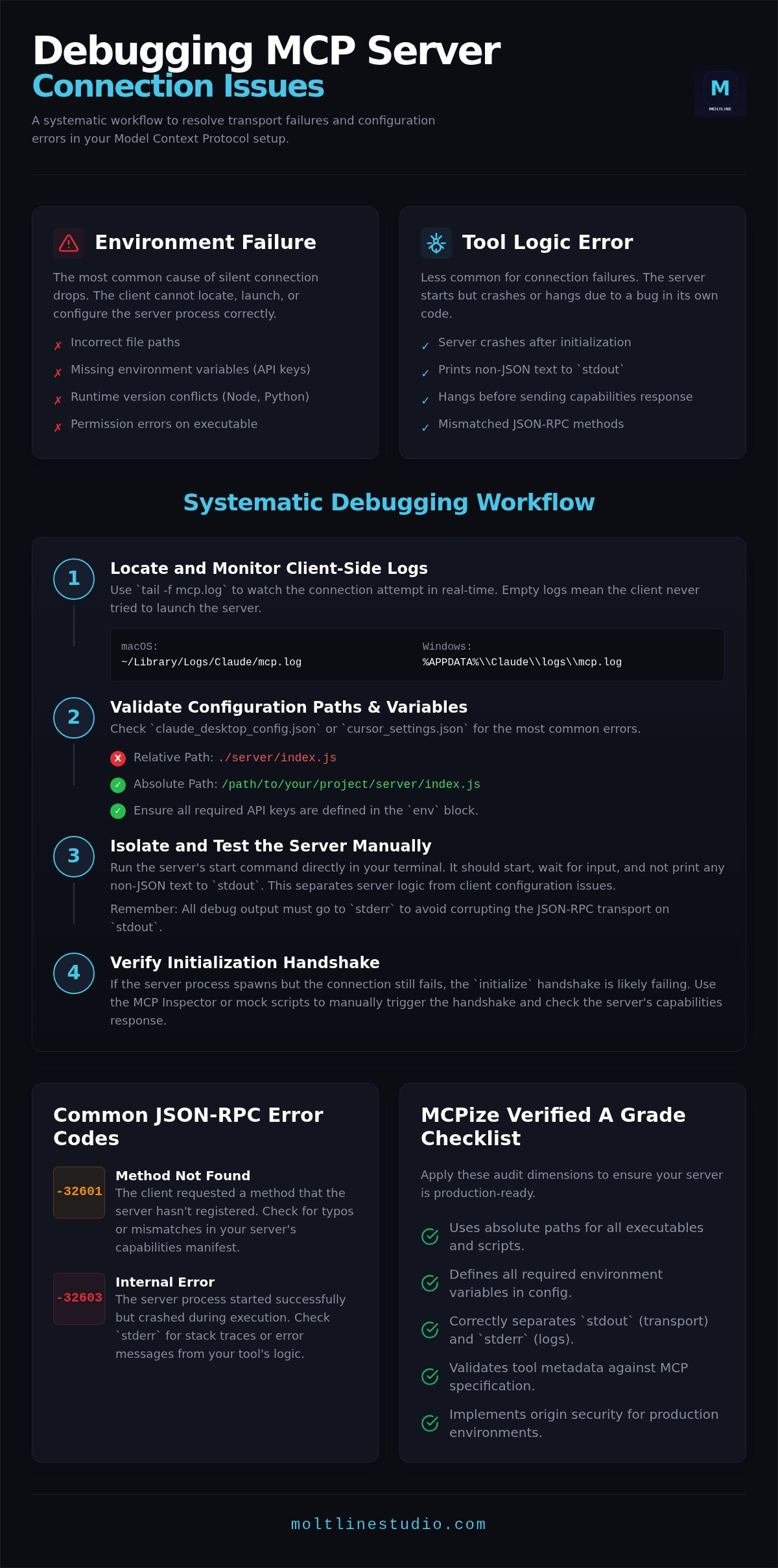
To debug mcp server connection failures, you must first inspect the client-side log files. The Model Context Protocol utilizes stdout for its message transport layer. This means any debugging information or print statements from your server code must be written to stderr. If your server logic prints plain text to stdout, the client will fail to parse the JSON-RPC frame. This results in an immediate and often silent connection drop.
Verify the server process is spawning by checking your system's activity monitor or process list. If the process doesn't appear, the client cannot locate or launch the executable. This usually happens because of incorrect pathing in the claude_desktop_config.json or cursor_settings.json files. You should also monitor the initial initialize request. If the server process spawns but the handshake never completes, the server is likely hanging before it can send the required capabilities response.
Locating log files on local systems
MacOS users can find Claude Desktop logs at ~/Library/Logs/Claude/mcp.log. On Windows, navigate to %APPDATA%\Claude\logs\mcp.log. Run tail -f on these files in your terminal to watch the initialization handshake in real-time. Look for permission errors that prevent the client from executing your server script. If the logs remain empty after a restart, the client hasn't attempted to launch the process. You can cross-reference your log structure with standardized communication protocols to ensure your server follows the expected lifecycle.
Interpreting common MCP error codes
JSON-RPC errors provide specific clues about why a connection fails. A -32601 error signifies "Method not found," often caused by a mismatch between the client's request and the server's registered capabilities. If you encounter a -32603 internal error, the server started but crashed during execution. Differentiate between transport timeouts and logic crashes by checking if the server process remains active after the error occurs. Many connection errors stem from missing environment variables, which you can verify by comparing your setup against the agent-readiness audit standards. This methodical approach identifies whether the failure exists in the transport layer or the underlying tool logic.
MCP server not connecting failure patterns
Relative paths in your configuration file frequently cause connection drops. When you define a server in claude_desktop_config.json, the client executes the command from its own internal directory. If your configuration uses ./server/index.js, the client will fail to find the file. Always use absolute paths for both the runtime binary and the script location. For instance, replace node with the full path found via which node to ensure the correct version of Node.js is utilized during execution.
Version conflicts in Node.js or Python environments also prevent initialization. A server written for Python 3.11 might crash silently if the client defaults to an older system version. To debug mcp server connection issues related to environments, specify the exact path to your virtual environment's executable. This ensures all dependencies are correctly loaded before the transport layer attempts to open a stream.
Environment variable validation
Clients launch MCP servers as child processes, but they don't automatically inherit your shell's environment variables. You must explicitly define API keys and configuration strings within the env block of your configuration file. Check for escaped characters in these strings; a misplaced backslash in a JSON file will break the parsing logic. You can use the fourteen hosted MCP servers as a baseline for how to structure these variables without exposing them to local path errors. Every production-grade server requires a clean environment manifest to maintain the MCPize Verified A grade.
Transport layer troubleshooting
Mismatches between stdio and SSE (Server-Sent Events) prevent the handshake from completing. Local servers typically rely on stdio, while remote deployments use SSE and HTTP protocols. If you are developing a local tool, test it by running the start command directly in your terminal. It should wait for input without printing non-JSON text. For complex implementations, such as the LLDB MCP implementation, verifying the transport layer involves checking if the debugger can bind to the expected communication port without interference from firewalls.
- Convert all relative paths to absolute system paths.
- Verify the
envblock contains all required API credentials. - Test the server binary in a standalone shell to catch immediate crashes.
- Confirm the runtime version matches the server's requirements.
If local instability persists, migrating to hosted MCP servers can eliminate these environment-specific failure patterns.
Fix MCP connection errors manually
Manual intervention is required when automated clients fail to provide specific error context. To debug mcp server connection issues at the protocol level, you must bypass the client and interact with the server directly. This isolation proves whether the failure lies in the server's initialization logic or the client's execution environment. You can verify the JSON structure of your tools/list response to ensure schema compliance before re-integrating with a complex client like Claude Desktop.
Using the MCP Inspector
Run npx @modelcontextprotocol/inspector <command> to launch a visual testing environment for your server. This utility acts as a mock client, allowing you to trigger individual methods without restarting your main application. Click through the tool list to verify that parameter types are correctly defined. If the inspector cannot parse your server's output, look at the raw JSON-RPC traffic pane. Hidden syntax errors, such as incorrect nesting in the capabilities object, often surface here first. This tool is essential for validating the 138 free agent skills available on GitHub before deployment.
Manual JSON-RPC testing
If the inspector fails to connect, you must test the server via standard input. Follow this procedure to verify the handshake manually:
- Open a terminal and start your server using its direct execution command, such as
node build/index.js. - Paste a valid JSON-RPC
initializerequest into the stdin stream. - Verify the response contains a
capabilitiesobject and a valid protocol version. - Confirm that no plain-text strings appear in the
stdoutchannel.
A successful server will respond with a capability object that defines its resources and tools. If the server outputs non-JSON text to stdout, such as a "Server started" message, the protocol will break immediately. Ensure all diagnostic messages are redirected to stderr to prevent transport interference.
Compare your local server's behavior against the agent-readiness audit criteria. This benchmark ensures that your initialization handshake and tool metadata meet professional standards. Every server we provide holds an independent MCPize Verified A grade across seven audit dimensions, which you can use as a reference for your own builds. For a production-ready environment that bypasses these local configuration hurdles, utilize the fourteen hosted MCP servers provided by Moltline Studio.
MCP logs and connection validation
Validating a connection requires more than just checking if the process runs. You must verify the integrity of the data being exchanged between the client and the server. To debug mcp server connection points effectively, apply the seven audit dimensions of the MCPize Verified A grade. This framework audits tool definitions, resource accessibility, and transport stability. For servers involving autonomous transactions, you must test the x402 payment challenge. This ensures that agents can handle financial handshakes without manual intervention or UI-based confirmation prompts.
Implement origin validation to prevent unauthorized clients from connecting to your server. This is critical for networked servers using SSE where the endpoint might be exposed to the public internet. By checking the origin header during the handshake, you ensure that only verified clients can access your tools. This security layer prevents malicious actors from probing your server's capabilities or executing unauthorized logic through the protocol.
Production-grade connection audits
Review governance standards to maintain long-term stability in your deployment. A common failure in production is the "zombie process," where a client disconnects but the server binary keeps running in the background. Implement proper lifecycle handlers for SIGTERM and SIGINT signals to ensure clean shutdowns. Additionally, audit your server for prompt injection vulnerabilities during the connection phase. Ensure that tool descriptions are descriptive enough for agentic reasoning. Vague descriptions cause LLMs to misinterpret tool capabilities, leading to logic errors that appear as connection timeouts.
Managed server alternatives
Self-hosting requires constant maintenance of runtime environments and security patches. Evaluate the stability of the fourteen hosted MCP servers against your current self-hosted setup. The total cost of ownership for custom connection logic often exceeds the price of a managed solution when you factor in development time and infrastructure costs. Moltline Studio provides an All-Access license for $19/month, which includes premium tools that already meet all MCPize Verified A requirements. These hosted options eliminate the need to debug mcp server connection issues caused by local pathing errors, OS-specific permissions, or mismatched Node.js versions.
Deploy stable MCP environments
Effective diagnostic workflows treat connection failures as solvable environment variables rather than mysterious system bugs. By isolating the transport layer and auditing your tool metadata against the MCPize Verified A grade, you ensure that your agents operate within a predictable execution context. You now have the production-grade steps needed to debug mcp server connection issues, from inspecting real-time logs to manually validating JSON-RPC handshakes. These methods transform silent failures into actionable data points. Logic errors shouldn't stop your deployment progress.
Maintaining local server configurations often introduces overhead that distracts from core development. If your local environment remains unstable, transition to a managed infrastructure that handles these protocols for you. You can access the fourteen hosted MCP servers to utilize tools that already meet strict audit standards. These servers integrate with 138 MIT-licensed agent skills and provide the foundation for production-ready AI infrastructure. Scaling your agentic capabilities becomes a matter of logic rather than troubleshooting. Building on a verified foundation ensures your tools perform under adversarial conditions.
Frequently Asked Questions
Why does my MCP server fail in Claude Desktop but work in the terminal?
Claude Desktop launches servers as child processes without inheriting your shell's environment variables or path settings. While your terminal knows where node or python is located, the desktop client requires absolute paths in its configuration file. If you use relative paths or rely on shell exports, the connection will fail. Always define necessary API keys in the env block and use the full binary path found via the which command.
How do I fix the "MCP connection closed" error in Cursor?
To debug mcp server connection drops in Cursor, check for unhandled exceptions that cause the server process to exit immediately. This error often triggers when the server writes non-JSON data to stdout instead of stderr. Ensure your server doesn't print log messages or startup strings to the primary transport stream. Validating your implementation against the MCPize Verified A grade standards helps identify these silent crashes before they close the connection.
Where are the log files for MCP servers located on Windows and Mac?
On MacOS, Claude Desktop logs are stored at ~/Library/Logs/Claude/mcp.log. Windows users can find these files at %APPDATA%\Claude\logs\mcp.log. For Cursor, logs are typically found within the editor's output pane or the developer tools console. Monitoring these files in real-time allows you to debug mcp server connection issues by catching the exact moment a transport-level timeout or a handshake failure occurs during the initialization phase.
What is the initialize request and why is it failing?
The initialize request is the primary handshake where the client and server exchange capabilities and protocol versions. It fails if the server doesn't respond with a valid JSON-RPC object within the client's timeout window. Common causes include slow startup times or a mismatch between the requested and supported protocol versions. You can test this manually by sending a raw JSON-RPC body to the server's stdin and verifying the resulting capability manifest.
How do I debug an MCP server using the x402 payment protocol?
Debugging the x402 payment challenge requires verifying that your server correctly emits a 402 Payment Required status when an autonomous transaction is necessary. Ensure the client receives the specific challenge headers required to process the payment via card or crypto. If the connection hangs, check if the agent is waiting for a manual confirmation that isn't being triggered. You can reference the x402 integration in our hosted servers to verify your transaction logic.
Audit your connection logic against the agent-readiness audit criteria to eliminate persistent transport failures.


